SSO ID Rajasthan 2026: SSO Login & Registration
SSO ID Rajasthan login 2026 create a new SSO ID, recover your forgotten ID, reset your password, and access Rajasthan government services.
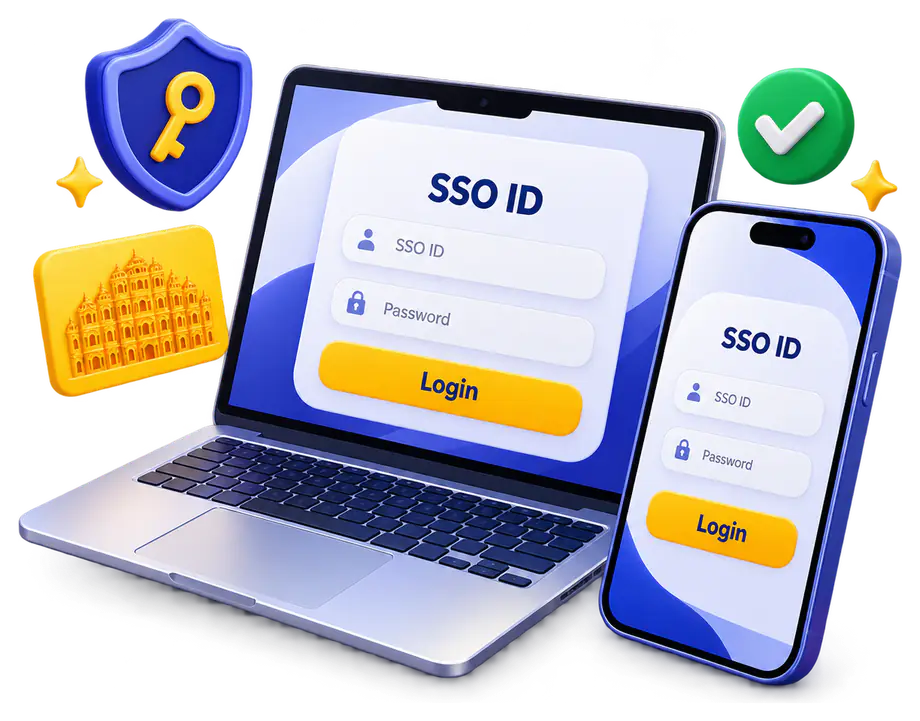
SSO ID Rajasthan is an important online service that helps you access various Rajasthan government services through a single digital identity. But I know how frustrating it can be when you cannot log in, forget your SSO ID or password, or struggle to create a new account. Whether you are a student, job seeker, citizen, or government employee, these problems can stop you from accessing important services when you need them most.
I understand these difficulties, and that is why I have created this SSO ID Guide portal based on my experience with SSO ID login, registration, account recovery, and related issues. My aim is to help you find practical solutions to your SSO ID problems in one place. Let me explain everything step by step, from creating a new SSO ID and recovering a forgotten password to accessing Rajasthan government services, so you can understand what to do next and find the right option for your needs.
How to Create SSO ID Rajasthan?
Dear users, if you do not have an SSO ID yet, don’t worry. I know the registration process can feel confusing when you are creating your account for the first time. Let me explain how you can register for SSO Rajasthan, choose the correct registration category, verify your details, and create your SSO ID so you can use it for Rajasthan government services.
Step 1: Visit the Official SSO Rajasthan Portal
First, open Google Chrome or any browser on your mobile or computer. Type https://sso.rajasthan.gov.in/ in the address bar and press Enter. This will open the official Rajasthan SSO portal, where you can find the login and registration options.
Step 2: Click on the Registration Option
Once the homepage opens, look near the upper-right area of the screen for the Registration option beside Login. Click Registration to start creating a new account. If you already have an SSO ID, choose Login instead of registering for another account.
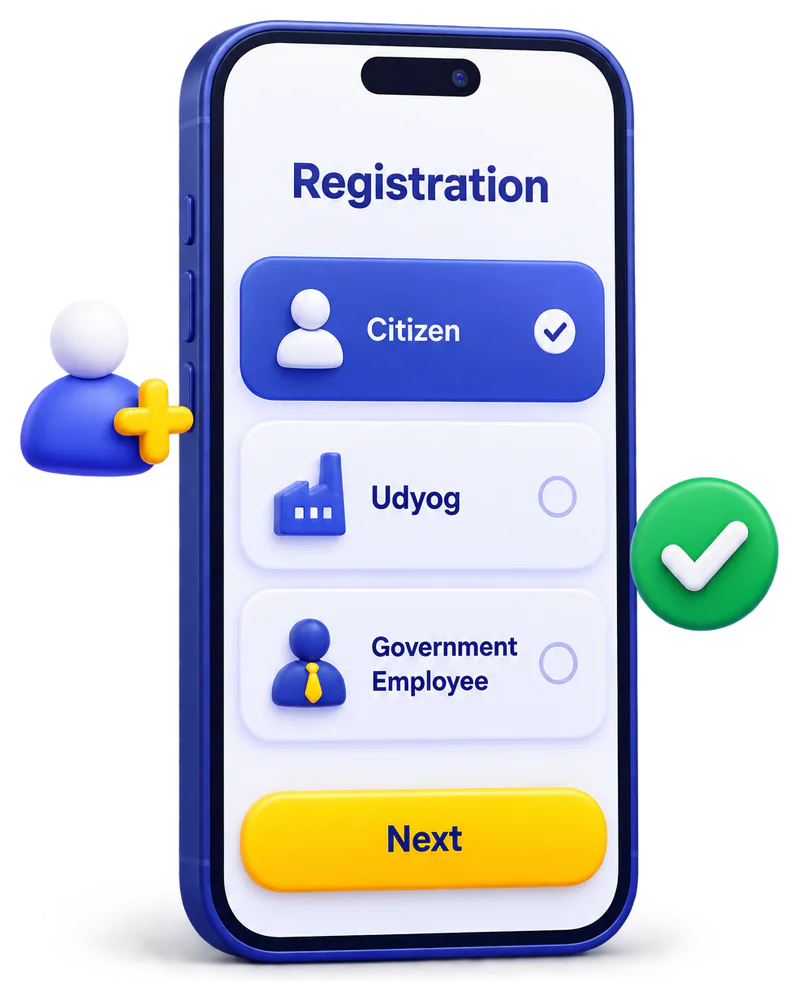
Step 3: Select Your Registration Category
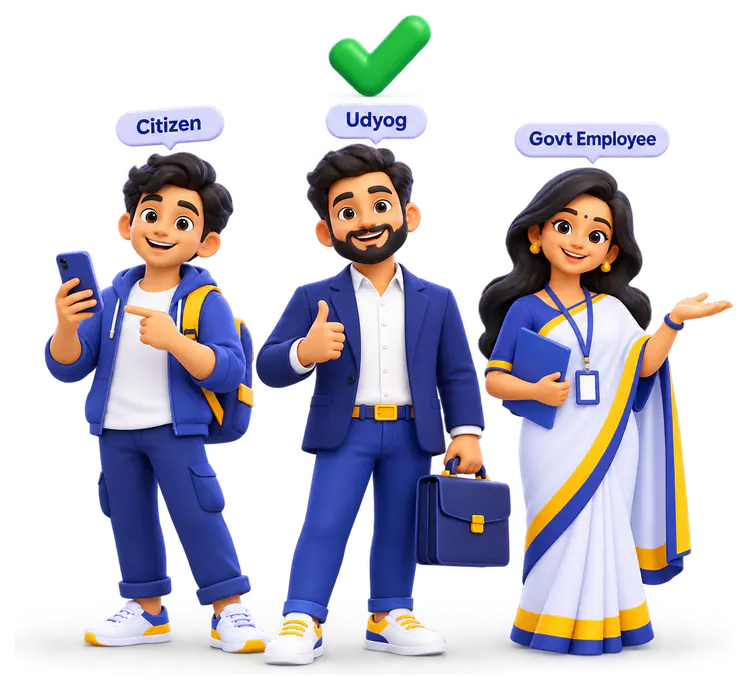
After clicking Registration, look at the categories displayed on the screen. The portal has provided options such as Citizen, Udyog, and Government Employee. Choose Citizen if you are creating an SSO ID for personal use, Udyog if you are registering for a business, or Government Employee if you are registering through the Rajasthan government employee process.
Step 4: Choose Your Registration Method
If you select Citizen, check which registration methods appear on your screen. Options have included Jan Aadhaar and Google, but the methods available may change as the portal is updated. Select a method you can use and follow the fields shown on the official page. Do not choose Udyog or Government Employee simply because your preferred citizen method is unavailable.
Step 5: Enter Your Details and Verify Your Identity
If you choose Jan Aadhaar, enter the requested Jan Aadhaar details and follow the prompts for member selection or OTP verification if they appear. If you choose Google, select your Google account and complete the sign-in prompts. The exact verification steps depend on the method offered by the portal, so carefully follow the instructions displayed on your screen.
Step 6: Create Your SSO ID and Password
Once your details have been accepted, complete any remaining registration fields shown on the page. If asked, choose an available username for your SSO ID and create a strong password that meets the displayed requirements. Check your details carefully, complete any requested confirmation, and click the final Register or Submit button to finish the process.
Step 7: Log In to Your New SSO ID
After successful registration, return to the official SSO Rajasthan homepage and click Login. Enter the SSO ID and password you created, complete any verification requested by the portal, and click Login again if needed. Once you access your account, you can explore the government services available to you through SSO login.
Important: Registration options and verification requirements can change. Always follow the current instructions on the official Rajasthan SSO portal, and never share your password or OTP with anyone.
What Documents Are Required for SSO ID Rajasthan Registration?
Dear users, before you start creating your SSO ID Rajasthan account, it is helpful to keep the required details ready. I know it can be confusing to understand which documents you need, especially when the SSO Rajasthan portal offers different registration options. Let me explain which identity details or documents you may need for citizen, business, and government employee registration, so you can prepare everything before starting.

Do You Need to Upload All These Documents?
No, dear users, you should not assume that every applicant needs all the items listed above. Your requirements depend on whether you register as a citizen, business, or government employee and which method you select. In many cases, you need the relevant identification details rather than uploading several document files.
1. Jan Aadhaar Card or Number
If you are a Rajasthan resident registering through the Jan Aadhaar option, keep your Jan Aadhaar number ready. It helps the portal identify your family or member details during registration, and you may need to verify your identity using an OTP sent to your registered mobile number. This method is available when the Jan Aadhaar option appears on the official registration page.
2. Google Account or Gmail ID
If you choose Google registration, you need access to your Google account. This allows you to complete the Google sign-in process instead of registering through Jan Aadhaar. Keep your Gmail login details available, and make sure you can access the account you intend to use.
3. Business Registration Number (BRN)
If you are creating an SSO ID under the Udyog category, keep your Business Registration Number (BRN) ready if the portal requests it. This number helps identify your registered business during the registration process. Follow the current business registration options shown on the official SSO portal.
4. SIPF Details for Government Employees
If you are a Rajasthan government employee, you may need your SIPF username or employee ID and the associated SIPF password to register through the Government Employee category. These details help the portal identify your employee account. This process is different from citizen registration, so choose the correct category before entering your information.
5. Registered Mobile Number
Keep access to the mobile number linked to your Jan Aadhaar or other relevant account if your chosen registration method requires OTP verification. The OTP confirms that you can access the registered number. If you cannot receive the code, check your registered mobile details before attempting verification again.
6. Email Address and Contact Details
Keep an accessible email address and your current contact details ready in case the registration form requests them. These details can help with account communication or verification when required. The exact fields depend on your selected registration method, so do not assume every user must submit the same information.
How to Login to SSO ID Rajasthan?
Dear users, once you have created your SSO ID, you can use the SSO ID Portal to access various Rajasthan government services online. I know it can be confusing when you are trying to find the correct login page or are unsure where to enter your details. Let me explain how to log in to your account step by step, so you can access your SSO ID without unnecessary confusion.
- Step 1: Open the official SSO website. Visit https://sso.rajasthan.gov.in/ using your mobile or computer browser. Make sure you are on the official Rajasthan government website before entering your login details.
- Step 2: Click on Login. On the homepage, find the Login option and click it to open the SSO login page. If the login page is already open, you can continue to the next step.
- Step 3: Enter your SSO ID. Type the SSO ID you created during registration into the username or SSO ID field. Check your spelling carefully to avoid login errors.
- Step 4: Enter your password. Type the password associated with your account in the password field. Make sure Caps Lock is set correctly and that you have entered the password without extra spaces.
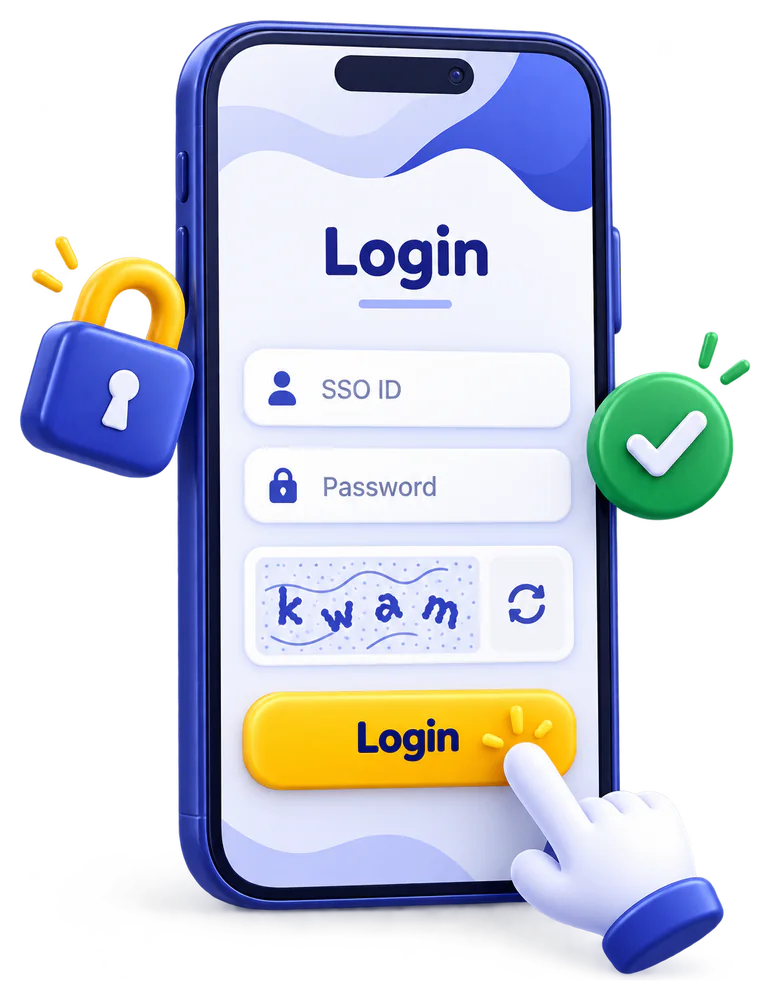
- Step 5: Complete security verification. If the portal displays a captcha, OTP, or another verification request, follow the instructions on the screen. The verification method may vary depending on the login process.
- Step 6: Click Login. After entering your SSO ID, password, and any required verification details, click Login to access your account. Once logged in, you can choose from the government services available on your dashboard.
Having trouble logging in? If you cannot remember your SSO ID or password, use the relevant recovery option on the official portal instead of repeatedly trying incorrect details. If the website is not opening or an OTP is not arriving, check your internet connection and registered mobile number before trying again.
How to Reset Your SSO ID Password
If you have forgotten your SSO ID Rajasthan password or cannot log in even after entering your details, do not worry. You usually do not need to create another SSO ID just because you forgot your password. Let me explain how you can reset it through the official portal and what to check if the recovery process does not work.
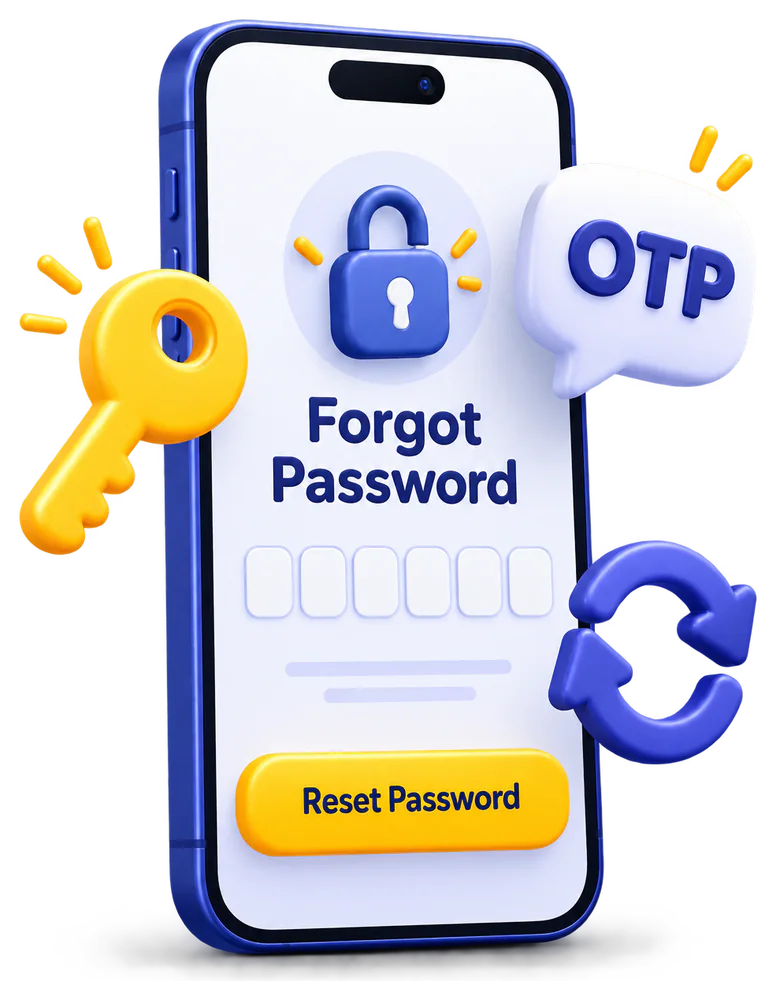
- Step 1: Open the Official Portal. Visit sso.rajasthan.gov.in using your browser.
- Step 2: Select Forgot Password. On the login page, look for the password recovery option and select it to begin the reset process.
- Step 3: Enter Your SSO ID. Provide the requested account details, following the instructions displayed on the official recovery page.
- Step 4: Complete Verification. Choose from the recovery methods currently offered for your account, if prompted. Complete any OTP or other verification required by the portal.
- Step 5: Create a New Password. If your identity is verified, follow the instructions to set a new password. Use a strong, unique password that you do not use for other accounts.
- Step 6: Log In Again. Return to the SSO login page, enter your SSO ID and new password, and complete any additional verification requested.
Security tip: Never share your password or OTP with another person. Use the official Rajasthan SSO website for account recovery, and do not create a duplicate account as a workaround for a forgotten password.
What Are the Eligibility Criteria to Create an SSO ID Rajasthan Account?
Before creating your SSO ID Rajasthan account, you may want to know whether you need to be a Rajasthan resident, what age requirements apply, and which details you must provide. Let me explain the eligibility criteria by category so you can identify the correct registration option and understand what you may need before starting.
Eligibility for Rajasthan Citizens
- Registration category: Select Citizen if you are creating an SSO ID for personal use.
- Registration method: Use an available option, such as Jan Aadhaar or Google, if displayed on the official portal.
- Required details: Keep the information needed for your selected registration method ready.
- Verification: Complete any OTP or identity verification requested by the portal.
Eligibility for Business Owners
- Registration category: Select Udyog if you need an SSO ID for business-related services.
- Business details: Keep your business registration information ready.
- Business Registration Number: Provide your BRN if the portal requests it.
- Verification: Follow the instructions shown for your business registration.
Eligibility for Rajasthan Government Employees
- Registration category: Select Government Employee if you are registering as a Rajasthan state government employee.
- Employee details: Keep your employee ID or relevant SIPF details ready, as required.
- Login credentials: Provide the employee credentials requested by the official portal.
- Verification: Complete the employee verification process shown on the screen.
Minimum Age Requirement
- General SSO registration: Do not assume that an 18-year minimum age applies to every registration category without checking the official rules.
- Recruitment and government schemes: Follow the specific age criteria published for the job, scheme, or service you want to access.
- Applicants under 18: Check the applicable registration instructions and service-specific rules before proceeding.
Is Rajasthan Residency Mandatory?
- Citizen services: Some services are intended specifically for Rajasthan residents.
- Alternative registration methods: The portal may offer registration options that do not require the same details as Jan Aadhaar registration.
- Service eligibility: Creating an SSO ID does not automatically establish Rajasthan domicile or make you eligible for every government service.
Important: Dear users, the registration options and required details can change. Before submitting your application, check the current instructions on the official Rajasthan SSO portal. Also remember that eligibility to create an SSO ID is different from eligibility for a particular government job, scholarship, or scheme.
What Services Does SSO ID Rajasthan Offer?
The main purpose of SSO ID Rajasthan is to make government services easier to access through a single digital identity. Instead of managing a separate login for every supported application, you can use your SSO ID to open the services available on your dashboard. Let me explain how SSO Rajasthan helps citizens, students, job seekers, business owners, and government employees access useful online services from one place.

1. Government Citizen Services
The SSO ID Portal provides access to various government applications designed for Rajasthan citizens. Depending on your eligibility and the services available to your account, you can use these applications to access public services, submit online requests, and manage certain government-related tasks without visiting an office for every step.
2. e-Mitra Online Services
The e-Mitra application connects users with a range of Rajasthan government and utility services. Depending on the service, users may be able to access bill payment facilities, application-related services, and other supported transactions. Sign in to your SSO account and check the available e-Mitra options to find the service you need.
3. Jan Aadhaar Services
Jan Aadhaar is an important part of Rajasthan’s digital service ecosystem. Through the relevant Jan Aadhaar application or linked service, eligible users can access supported family identity and related facilities. The exact features available depend on the application and the purpose for which you are using it.
4. Government Job Applications
If you are preparing for a Rajasthan government job, your SSO ID can help you access the Rajasthan Recruitment Portal. The recruitment system supports one-time registration and connects candidates with different stages of the recruitment process, from applications and examinations to results. Always check the relevant recruitment notification for eligibility, deadlines, and required documents.
5. One Time Registration
The One Time Registration, or OTR, facility helps candidates complete their initial registration for supported Rajasthan recruitment processes. Rather than repeatedly entering the same basic information for every application, candidates can use the registration system according to the portal’s rules. After completing your SSO login, open the recruitment service to check the current OTR instructions.
6. Employment Exchange Services
The SSO dashboard includes employment-related applications, including the Employment Exchange Management System. These services support employment-related administration and facilities offered by the relevant department. If you are looking for job-seeking support or employment registration, open the available employment application and check which facilities apply to you.
7. Scholarship Application Services
Students can use the relevant scholarship applications available through Rajasthan’s digital service system to access supported scholarship-related processes. Depending on the scheme, these may include application submission or related information. Remember that each scholarship has its own eligibility rules, required documents, and application dates, so check the official scheme details before applying.
8. Education Department Services
The SSO dashboard includes applications connected with education and higher education, such as DCEAPP and Higher and Technical Education services. These applications support particular departmental processes rather than providing every education service through one page. Students and other eligible users should open the relevant application to check its purpose and available facilities.
9. Learning and Library Services
The dashboard has included e-Learning and e-Library applications. These services are intended to support the learning and digital resource facilities made available through the relevant departments. Their exact content and access conditions may vary, so sign in to your SSO account and check the options currently displayed.
10. Government Employee Services
Rajasthan government employees can access supported employee-related applications, including State Insurance and Provident Fund services. These systems may help eligible employees access departmental information and complete specific administrative tasks. Employee access can require separate credentials or permissions, so use the appropriate employee service and follow its instructions.
11. Business Registration Services
Business owners can find applications such as Business Registration Number services and other business-related systems through Rajasthan’s digital government platforms. These facilities support specific business registration and administrative requirements. If you are registering an enterprise or applying for a business service, check the relevant application to understand its documentation and eligibility requirements.
12. Industry and Startup Services
The SSO dashboard includes business and industry-related applications, including MSME and iStart. These platforms support particular business, entrepreneurship, and startup-related processes offered by the relevant departments. The facilities available to you will depend on the programme and the type of application you want to complete.
13. Utility Bill Payment Services
Rajasthan’s connected digital service ecosystem includes facilities related to electricity and water bills, along with payment services supported through applications such as e-Mitra. Available options depend on the utility provider and the service you select. Before making a payment, verify the consumer details and the amount shown on the official payment page.
14. Property and Building Services
The SSO application directory includes services related to building plan approval and urban development. Depending on the relevant authority, these applications can support specific property, building, or municipal processes. Users should select the correct department and check its requirements before submitting a request or paying a fee.
15. Arms Licence Services
An Arms Licence application is listed among the services available through Rajasthan’s digital government system. Eligible users can access the relevant application to review supported licence-related procedures. Licence eligibility, documentation, approvals, and renewal requirements are determined by the applicable rules and the responsible authority.
16. Public Grievance Services
The Rajasthan Sampark application provides a route for citizens to access the state’s public grievance system. It helps users raise concerns through the supported process and follow the relevant grievance facilities. Check the application’s instructions for submitting a complaint and tracking any available response or status.
17. RTI and Information Services
The SSO dashboard has included an RTI application for supported Right to Information processes. Citizens can check the relevant application for information about submitting a request under the applicable procedure. The exact process, fee, and response timeline depend on the rules and the public authority involved.
18. Panchayat and Rural Services
The dashboard includes Panchayat-related applications and other rural development systems. These support specific departmental functions and services connected with local administration or rural programmes. If you need a village-level or Panchayat-related service, open the relevant application and confirm that it handles your particular request.
19. Agriculture and Land Services
Rajasthan’s connected application ecosystem includes services associated with land records, geographic information, and agricultural administration, such as Rajdharaa and Kisan Girdawari-related systems. These applications serve particular purposes, so the information or transaction available will depend on the service you choose and your access permissions.
20. Police and Citizen Services
The SSO dashboard includes police-related applications, including citizen-facing services. These can provide access to specific facilities offered by the relevant department. The available functions depend on the application, and urgent police matters should be handled through the appropriate official emergency or police channel rather than relying solely on the SSO portal.
21. Health and Welfare Services
Rajasthan’s digital government ecosystem includes health-related and welfare applications, including systems connected with health records and eligible welfare programmes. These services may support particular applications or administrative tasks. Check the relevant department’s official information to confirm eligibility, documents, and whether a service can be accessed through your SSO account.
22. Government Department Applications
The SSO dashboard also contains many specialized departmental applications, including finance, forest and wildlife, mines, labour, tourism, transport-related administration, and other government systems. These applications are designed for specific tasks, and not every service is intended for every citizen. Use the dashboard’s search facility to find the department or application relevant to your needs.
23. RajKaj and Official Work
RajKaj is associated with Rajasthan government administrative and office workflows. Access to these facilities is generally relevant to authorized government personnel and depends on the employee’s role and permissions. If you are a government employee, use the appropriate official login and contact your department if you need access to a restricted application.
24. Digital Document Services
Some connected government processes support digital document verification and links with services such as DigiLocker or Rajasthan’s e-Vault. These facilities can help with document-related steps in supported applications, including recruitment processes. Availability depends on the particular service, so check its instructions before assuming that a document can be retrieved or verified automatically.
How to Update Jan Aadhaar Details Using SSO ID
Dear users, if your Jan Aadhaar contains incorrect information or you need to update your family details, you can start the process through your Rajasthan SSO ID. I know it can be confusing to understand which details need verification and why an update may not appear immediately. Let me explain the process step by step, including e-KYC, submitting corrections, and checking the status of your request.
1. Complete Jan Aadhaar e-KYC
Before making changes, check whether Aadhaar e-KYC has been completed for the head of the family and all members above five years of age. According to the official Jan Aadhaar Authority, e-KYC is required before editing existing Jan Aadhaar information. You can complete it through your SSO ID or visit a nearby e-Mitra centre for assistance. Children under five have separate verification options depending on their birth certificate and circumstances.
2. Open Jan Aadhaar Services
Visit the official Rajasthan SSO portal and log in using your SSO ID and password. From your dashboard, open the Jan Aadhaar application under the available citizen services. If the application asks you to verify your identity or family information, follow the instructions displayed on the official portal.
3. Submit Your Corrections
Look for the Jan Aadhaar edit or update option and select the information that needs correction. Depending on the type of change, you may need to provide supporting documents or complete Aadhaar authentication. Enter the correct details carefully and review them before submitting your request. The required documents depend on the information being changed, so follow the requirements shown for your specific update.
4. Check Your Update Status
After submission, check the relevant status or verification option on the Jan Aadhaar portal. Updates generally pass through a verification process involving designated officials before the information is changed in the system. If your request remains pending, check whether verification is still in progress or any action is required from you. Avoid relying on a fixed processing period, because the time can vary by request and verification stage.
5. Resolve Pending or Rejected Requests
If your update is rejected or remains pending, review the status message and any reason provided. Check for incomplete e-KYC, incorrect information, missing documents, or a pending verification step before submitting another request. If the reason is unclear, contact the official Jan Aadhaar support team or visit an e-Mitra centre instead of repeatedly submitting the same correction.
How to Merge Duplicate SSO ID Rajasthan Accounts?
Really it is a big problem. If you have accidentally created more than one SSO ID, you may be unsure which account to keep or how to resolve the issue. Rajasthan’s official SSO portal provides a “I have multiple SSOIDs” option for the merging process. However, the correct procedure depends on your account type, so check the instructions carefully before making any changes.

- Step 1: Open the Official SSO Portal. Visit sso.rajasthan.gov.in and look for the option labelled “I have multiple SSOIDs Click here to merge” on the login page.
- Step 2: Follow the Merge Instructions. Select the multiple-SSOID option and follow the instructions displayed by the official portal. The required details and verification steps may depend on the accounts involved.
- Step 3: Identify Your Accounts. Before proceeding, confirm which SSO ID you currently use and whether the other account is a duplicate or a government employee account. Do not assume that every type of account can be merged in the same way.
- Step 4: Complete Required Verification. Provide the requested account details and complete any verification prompted by the portal. Do not share your password or OTP with another person.
- Step 5: Confirm the Outcome. Follow the portal’s confirmation message and check that you can access the account you intend to keep. If the merge option does not support your situation, contact the official SSO helpdesk before deactivating an account.
SSO ID Rajasthan Problems and Solutions
I know how frustrating it can be when your SSO ID Rajasthan account stops working just when you need to submit a government form, check a scholarship, or access an important service. You may face problems while registering, logging in, recovering your password, linking Jan Aadhaar, or opening an application from your dashboard. Let me help you identify these common SSO ID problems and understand what you can do to resolve them.
SSO ID portal not opening
Check your internet connection and open the official website at https://sso.rajasthan.gov.in/ directly. If the portal displays a maintenance message, wait and try again later.
SSO ID login failed
Re-enter your SSO ID and password carefully. Check for typing mistakes, extra spaces, and accidental Caps Lock before trying again.
Forgot SSO ID username
Open the official portal and select the available “Forgot SSO ID” or username recovery option. Follow the displayed verification steps.
Forgot SSO ID password
Select “Forgot Password” on the official login page and complete the recovery process shown. Use only the official portal to reset your password.
Incorrect username or password
Confirm that you are using the correct SSO ID rather than your email address or another account’s username. If the password is not accepted, use the official reset option.
OTP not received
Check whether the registered mobile number is active, wait briefly, and request another OTP if the portal permits it. Avoid repeatedly requesting codes in quick succession.
OTP expired or invalid
Request a fresh OTP and enter the newest code before it expires. Do not use an older code after requesting another one.
Captcha verification failed
Enter the captcha exactly as displayed, including the correct characters. Refresh it if it is unclear and try again.
Account temporarily blocked
Stop repeated login attempts and follow any waiting period or recovery instructions shown on the portal. Contact official support if you cannot regain access.
New SSO ID registration failed
Return to the official registration page and check that you selected the correct category, such as Citizen, Udyog, or Government Employee. Complete each required field and verification step.
Registration option not visible
Open the official registration page directly and check the options currently available for your category. Registration methods may differ or change over time.
Jan Aadhaar verification failed
Check that the Jan Aadhaar details you entered are correct and that the required verification has been completed. If the information does not match, resolve the discrepancy through the appropriate Jan Aadhaar channel.
Google registration issue
If Google registration is offered, confirm that you selected the intended Google account and completed the authentication steps. If registration does not finish, return to the official portal and try the displayed alternative, if available.
Government employee registration failed
Verify that you selected the Government Employee category and entered the employee or SIPF details requested by the portal. If your credentials are rejected, contact your department’s designated support team.
Business SSO registration problem
Select the Udyog category and check the business information requested. If a Business Registration Number or other verification is required, use valid details and follow the portal’s instructions.
Two SSO IDs created accidentally
Identify which account you need to retain before changing anything. Use the official multiple-SSOID or merge option if it supports your account type. Do not deactivate an account without checking the consequences.
SSO ID merge option missing
Check the official merge instructions and confirm that your account types are eligible for the available process. If the option is unavailable, ask the SSO helpdesk for guidance instead of experimenting with account deactivation.
Jan Aadhaar not linked correctly
Check the Jan Aadhaar ID saved in your SSO profile and compare it with your correct details. Follow the official profile update process if a correction is required.
Mobile number changed
Check whether your profile can be updated using the available verification method. If you no longer have access to the registered number, contact official support for the approved account recovery procedure.
Email address needs updating
Open your profile settings, if accessible, and check whether an email update option is available. Complete any requested verification before relying on the new address.
SSO dashboard not loading
Refresh the page, sign in again, or try an updated browser. If the issue continues across browsers and devices, it may require technical support.
Service or application missing
Use the dashboard search option, if available, and search for the application by name. Some services may not be available to every account or user category.
Government service will not open
Sign out and sign in again, then reopen the application from the SSO dashboard. If the application displays its own error, contact that department’s support team because the issue may be specific to that service.
Session expired automatically
Sign in again and reopen the service. If you were filling out a form, check whether your information was saved before entering it again.
SSO portal running slowly
Close unnecessary tabs, check your connection, and retry after a short wait. If several users are experiencing the same issue, the portal may be under heavy load or maintenance.
Browser compatibility issue
Update your browser and try opening the portal in a standard browser window. If a browser extension interferes with the page, test again with extensions disabled.
Login works on one device only
Check the browser version, internet connection, date and time settings, and any verification prompt on the device where login fails. Avoid sharing your credentials with anyone offering unofficial assistance.
Form submission failed
Check all mandatory fields and the instructions displayed beside them. If the error continues, note the exact message and contact the relevant service’s helpdesk before repeatedly submitting the form.
Document upload failed
Check the accepted file format, file-size limit, and any image or document requirements shown on the application page. Re-save the file in an accepted format and try uploading it again.
Recruitment or OTR problem
Confirm that you are using the correct recruitment service and that your One Time Registration details are complete. For application-specific errors, check the official recruitment portal’s instructions and support details.
Application status not updated
Open the relevant service and check its application-status section. A status update may depend on departmental verification, so contact the department if the displayed status requires clarification.
Unexpected error after login
Record the error message, note which application you were opening, and retry after signing in again. If it persists, share these details with the official helpdesk without sending your password or OTP.
FAQs

Conclusion
Dear users, I hope this SSO ID Rajasthan portal has helped you understand how to create a new SSO ID, log in to your account, reset a forgotten password, manage duplicate IDs, and access Rajasthan government services online. I know these processes can feel confusing when you face an unexpected error or need to complete an important application quickly. That is why I have explained the common problems and their possible solutions in simple steps, so you can find the right information without unnecessary confusion.
My advice is to always use the official Rajasthan SSO portal for registration and account-related tasks. Keep your login details secure, check the requirements of each government service, and never share your password or OTP with anyone. If a problem continues after following the suggested steps, contact the relevant official helpdesk for further assistance. I will continue to make this portal more helpful by providing practical information that helps you access the services you need with greater confidence.